Configure macOS Auto-Updates in the Library
With KACE Cloud you can create macOS Auto-Update Configurations to ensure your managed macOS devices run the latest OS version. macOS Auto-Update Configurations are covered by your base KACE Cloud license. You can find them in the Security Library. Administrators can use macOS Auto-Update Configurations to, for example, automatically check, download and install macOS updates on managed devices.
When you create macOS Auto-Update Configurations in the Security Library, you can associate them with applicable target devices either by linking them to policies or applying them directly. For details, see Manage macOS Auto-Updates on devices.
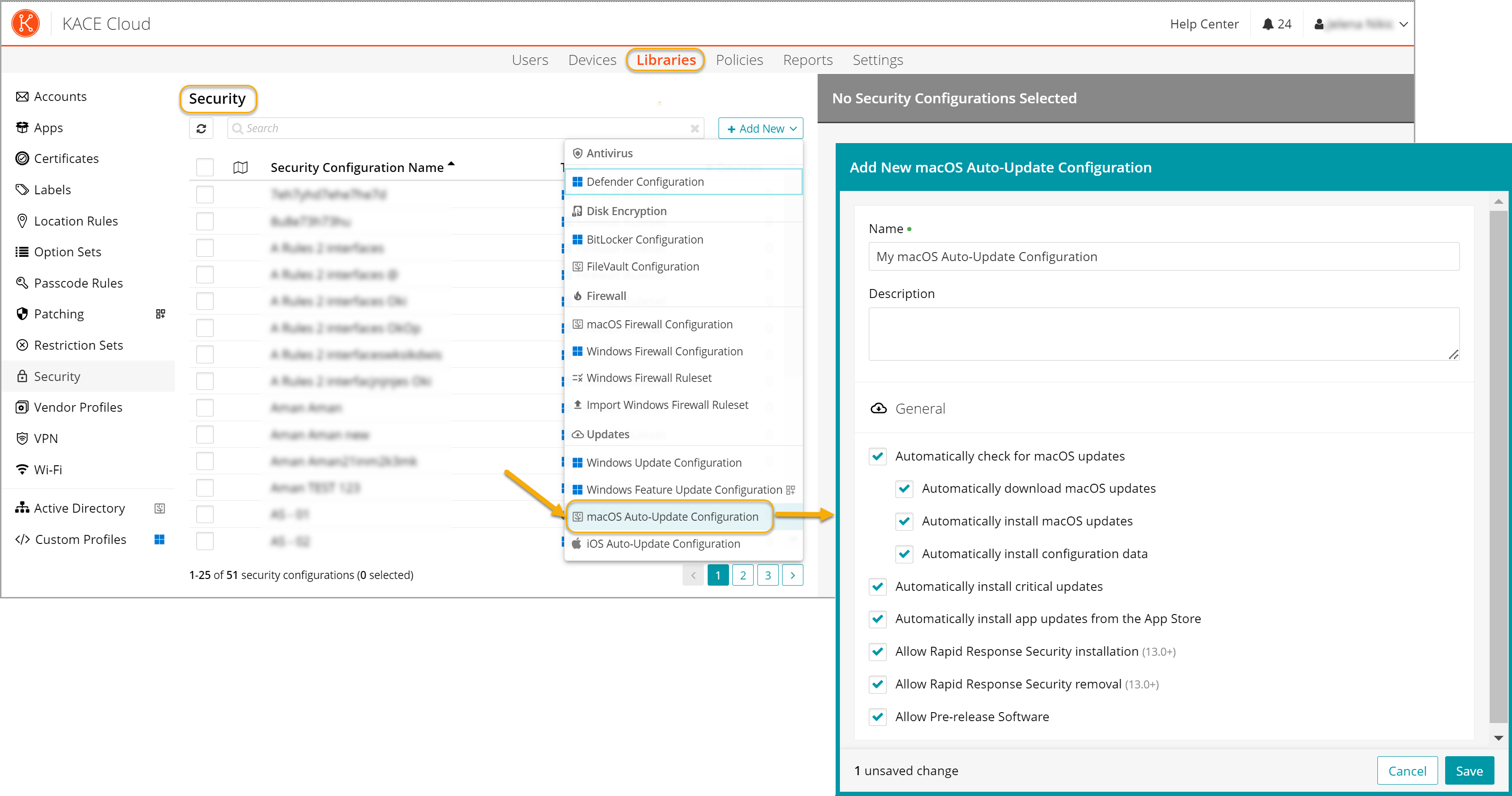
To create or edit a macOS Auto-Update Configuration:
- Select the Libraries tab in top navigation.
- Click Security.
- Complete one of the following steps:
- To create a new macOS Auto-Update Configuration, choose Add New > macOS Auto-Update Configuration.
- To edit an existing macOS Auto-Update configuration, select it in the list, and click Edit.
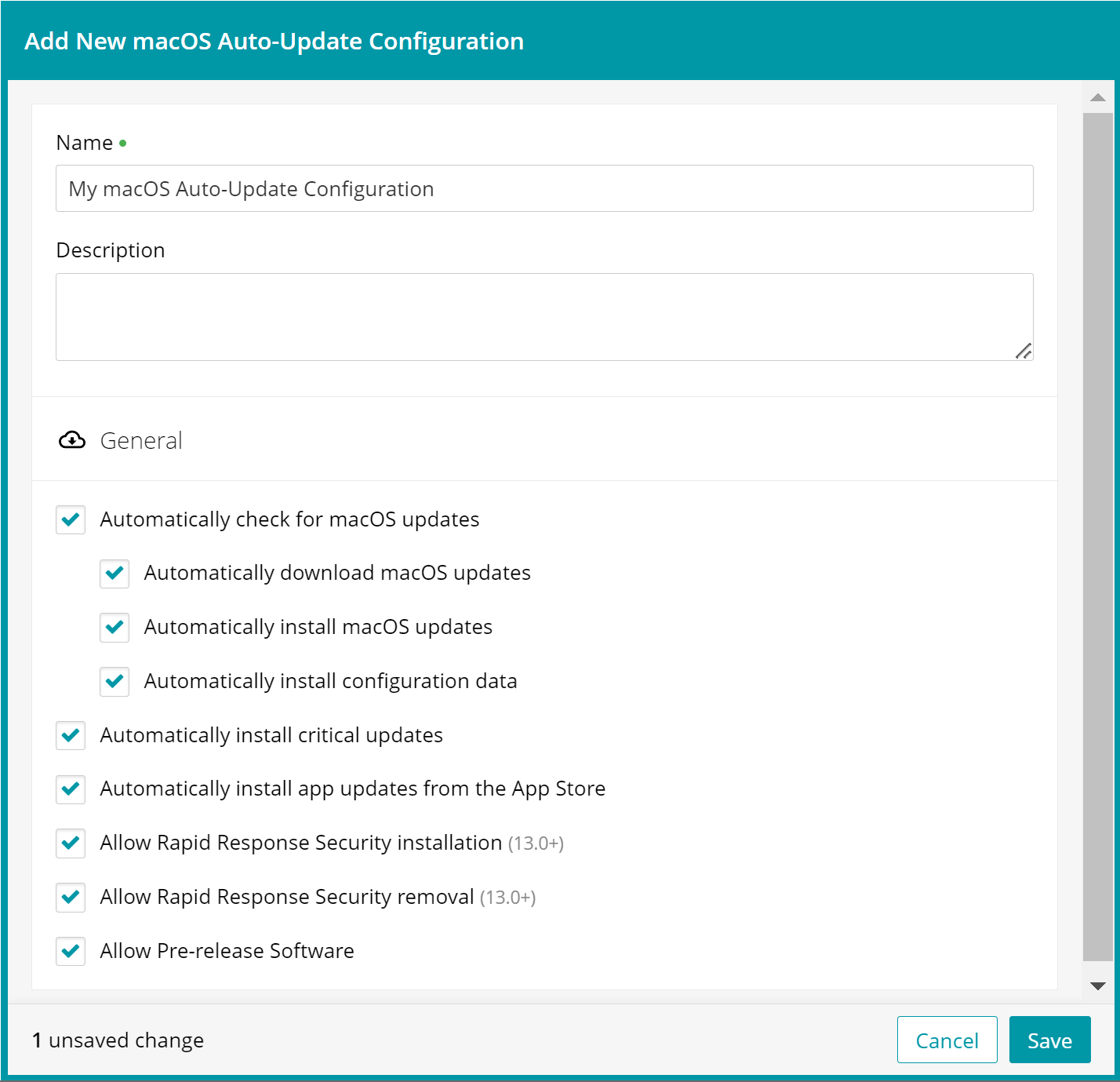
- In the configuration view that appears on the right, ensure the configuration has a unique Name, and provide a Description, as applicable.
- For each configuration setting that you want to apply to associated devices, select the appropriate check box.
For example:
- To automatically check for macOS updates and to download and install them, select the following check boxes: Automatically check for macOS updates, Automatically download macOS updates, and Automatically install macOS updates. You can also select Automatically install configuration data, if applicable.
- To automatically install app updates from the App Store, select Automatically install app updates from the App Store.
- If your managed devices are signed up for the Apple Beta Software Program, and you want to install preview features as they become available, select Allow Pre-release Software.
- When done, click Save.